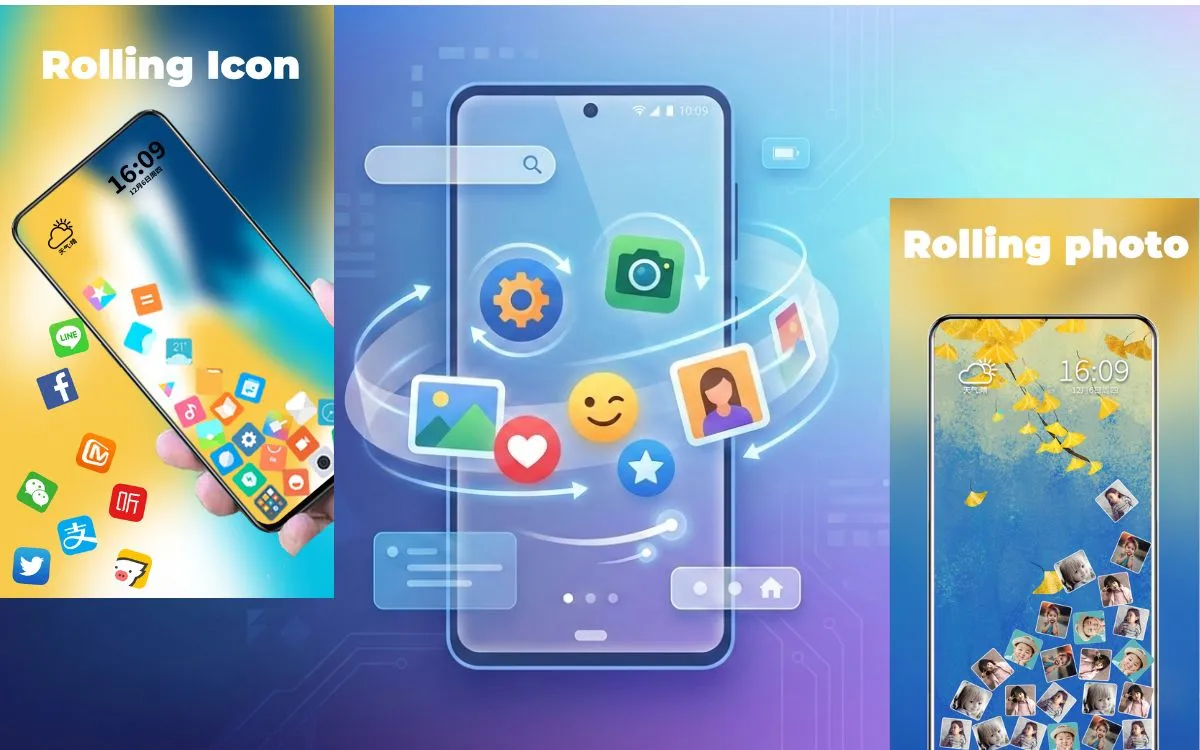
If you’ve ever seen icons rolling or spinning on someone’s Android phone and wondered “How are they doing that?” — you’re not alone. Rolling icons have become a popular mobile customization trend, especially among Android users who love giving their home screen a fun, dynamic look.
In this guide, I’ll explain what rolling icons are, how they work, and how you can add rolling app icons, pictures, or emoji icons on your Android mobile — without needing technical skills or rooting your phone.
This article is written for real users, not just for search engines, so everything is explained step by step.
What Is a Rolling Icon on Android?
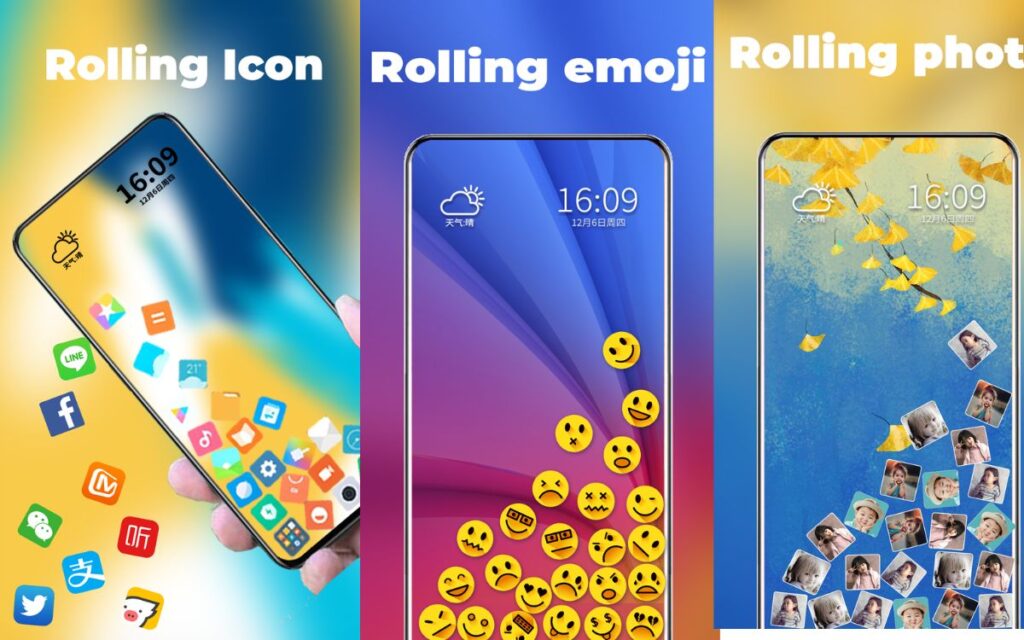
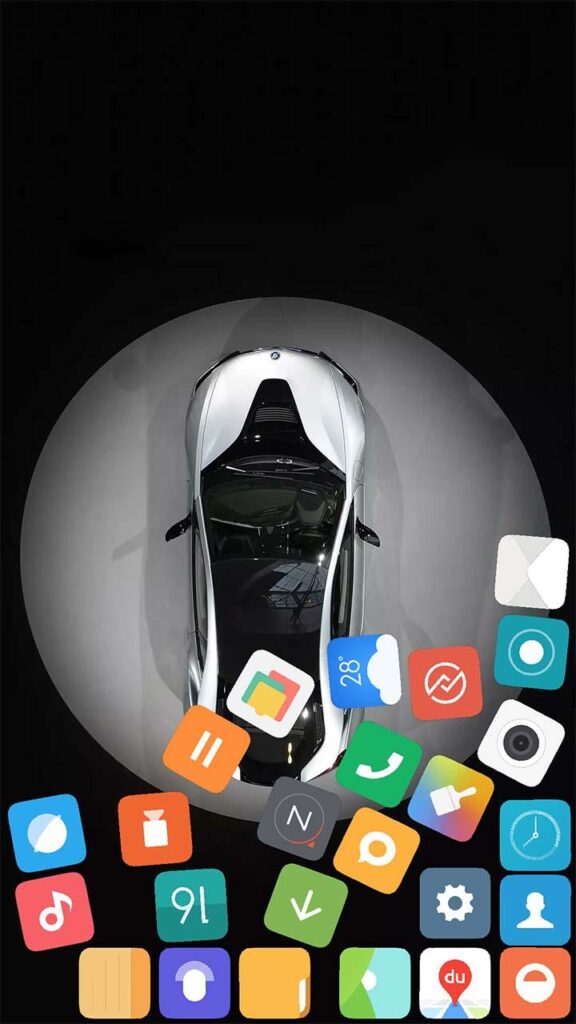
A rolling icon is an animated app icon, image, or emoji that moves, rotates, or spins on your Android home screen instead of staying static.
These icons:
- Rotate in a circular motion
- Roll when you swipe screens
- Animate continuously or on touch
Rolling icons are mostly used for:
- Personalization
- Fun home screen themes
- Social media content and screen recordings
Android allows this kind of customization mainly through third-party apps and launchers.
Rolling Icon Types You Can Use on Android
Not all rolling icons are the same. Depending on the app you use, you can create different styles.
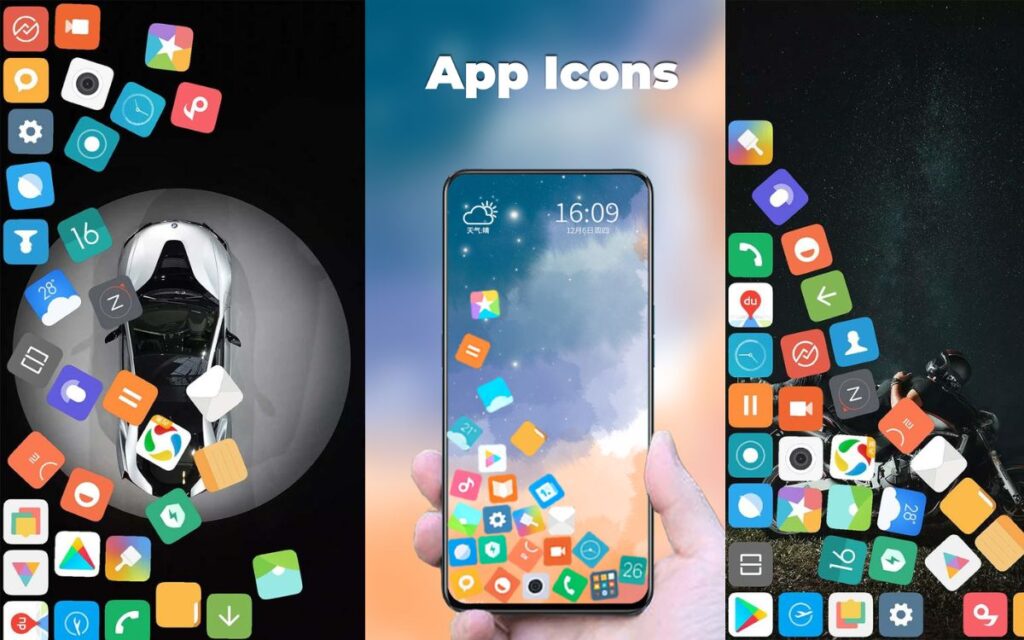
1. Rolling App Icons
These are normal app icons (WhatsApp, Instagram, Chrome, etc.) that:
- Spin or roll
- Animate when tapped
- Rotate while switching home screens
You don’t change the app itself — only how its icon looks.
2. Rolling Picture Icons
Rolling picture icons let you:
- Use your own photo
- Convert images into rotating icons
- Add animated effects
Many users create rolling picture icons using:
- Profile photos
- Cartoon images
- Logos or symbols
3. Rolling Emoji Icons
Emoji rolling icons are especially popular on:
- Short videos
- Custom home screens
- Creative themes
You can:
- Turn emojis into rotating icons
- Combine emojis with motion effects
- Use them as app shortcuts
Best Apps for Rolling Icons on Android
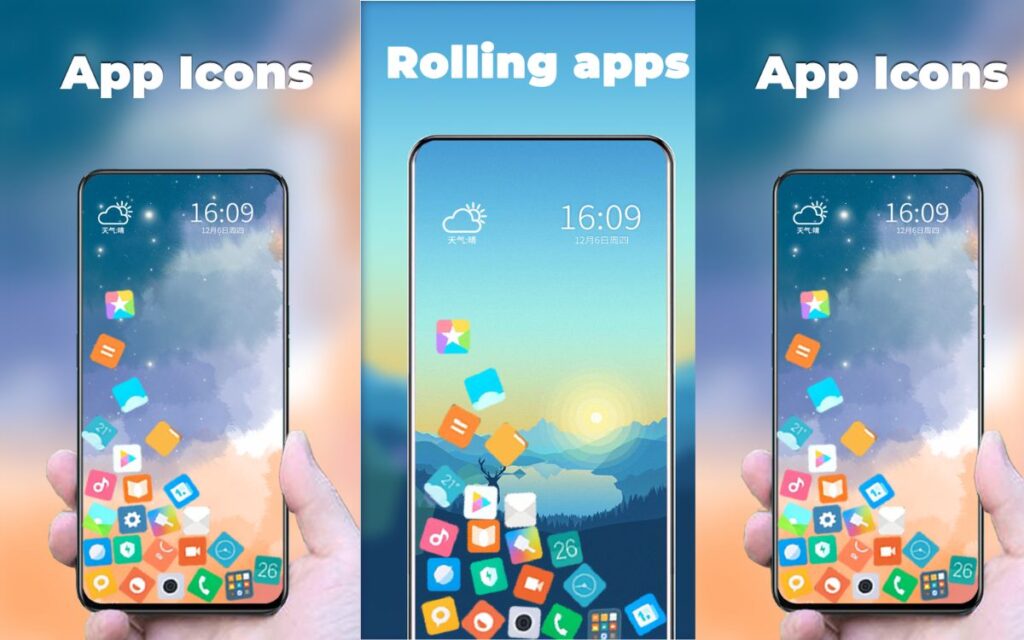
Here are some popular and safe Android apps commonly used for rolling icons.
1. Icon Animation Apps
These apps focus on:
- Rotating icons
- Motion effects
- Touch-based animations
They usually allow:
- App icon selection
- Animation speed control
- Preview before applying
2. Custom Launchers (Very Important)
Most rolling icons require a custom launcher.
Popular launcher features include:
- Animated icon support
- Gesture effects
- Smooth transitions
⚠️ Without a launcher, many animation features won’t work properly.
3. Widget & Shortcut Apps
For many users, it’s just a simple way to make Android feel fresh again.
Some rolling icons work as:
- Widgets
- App shortcuts
- Floating icons
These are useful if you don’t want to replace your entire launcher.
How to Add Rolling Icons on Your Android Mobile (Step-by-Step)
Here’s the simple method most users follow:
Step 1: Install a Compatible Launcher
Choose a launcher that supports animated or custom icons.
Step 2: Download a Rolling Icon App
Search on Play Store for rolling icon or animated icon apps.
Step 3: Select the App, Picture, or Emoji
- Choose an app icon
- Upload a picture
- Pick an emoji
Step 4: Apply Animation Effect
DownloadSelect:
- Rotation
- Rolling speed
- Loop type
Step 5: Add to Home Screen
Place the rolling icon where you want on your home screen.
That’s it — no root, no technical setup.
Are Rolling Icons Safe to Use?
Yes, most rolling icon apps are safe, but you should be careful.
Safety Tips:
- Download apps only from Play Store
- Avoid apps asking unnecessary permissions
- Check reviews before installing
- Avoid apps that promise “system hacks”
Rolling icons are visual effects only — they don’t change your system files.
Do Rolling Icons Affect Battery Life?
Minimal impact — but it depends.
Battery impact is:
- Low for slow animations
- Slightly higher for continuous spinning icons
To reduce battery usage:
- Use motion-on-touch icons
- Avoid too many rolling icons at once
- Lower animation speed
Why People Love Rolling Icons on Android
Users enjoy rolling icons because:
- They make the phone look unique
- Easy to set up
- No coding required
- Fun for screen recordings and reels
Common Problems and Solutions
Rolling Icon Not Moving?
- Launcher may not support animation
- Battery saver might be limiting background effects
Icon Resets After Restart?
- Lock launcher settings
- Disable app optimization for the icon app
FAQs About Rolling Icons on Android
Q1. Can I use rolling icons without a launcher?
Some apps allow widgets, but full icon animation usually needs a launcher.
Q2. Do rolling icons work on all Android phones?
Yes, most Android versions support them, but features may vary by brand.
Q3. Are rolling emoji icons free?
Most apps offer free basic effects, with optional premium animations.
Q4. Can I record my rolling icons for videos?
Yes, many users create short videos or reels using rolling icon effects.
Final Thoughts
Rolling icons on Android are a simple, fun customization trend that doesn’t require technical knowledge. Whether you want rolling app icons, rotating pictures, or emoji icons that move, Android gives you enough freedom to personalize your phone your way.
If you enjoy customizing your mobile experience, rolling icons are definitely worth trying.
📌 Tip for Readers
If you’re into Android customization, keep your home screen clean — fewer icons with smooth animations look better than cluttered screens.