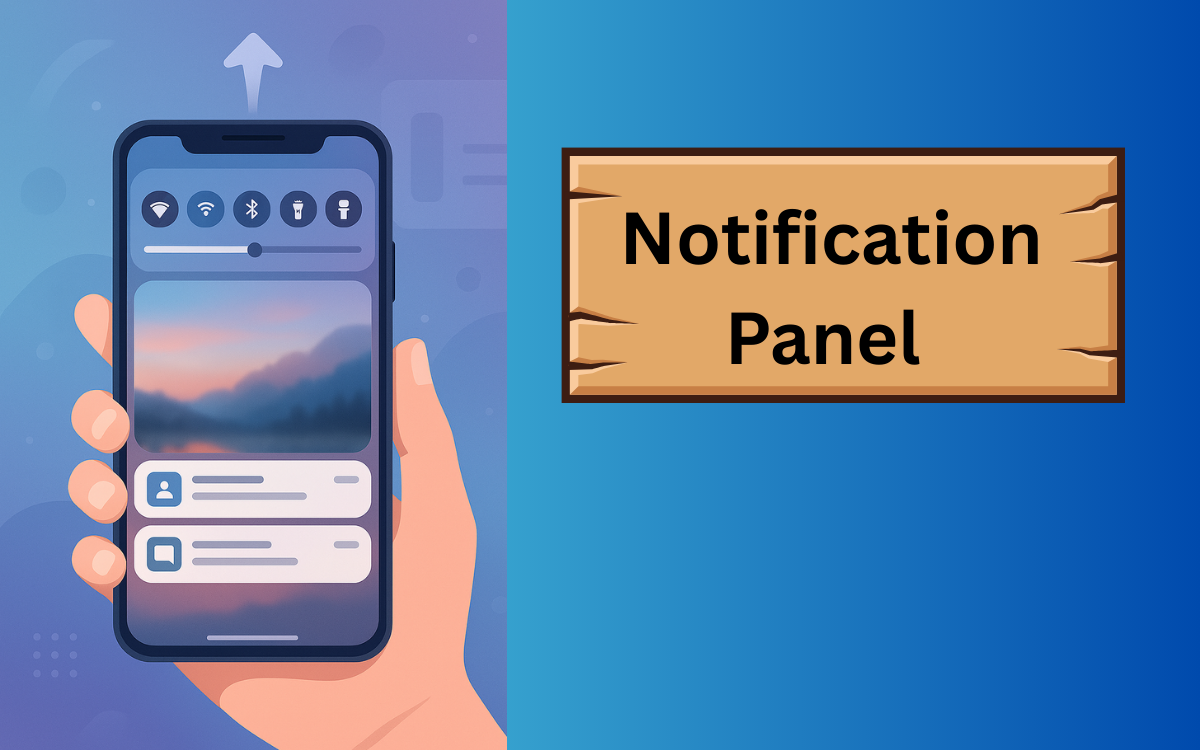
Android customization is one of the biggest reasons people love the platform. From launchers to widgets, Android lets you personalize almost everything — and yes, even your notification panel background.
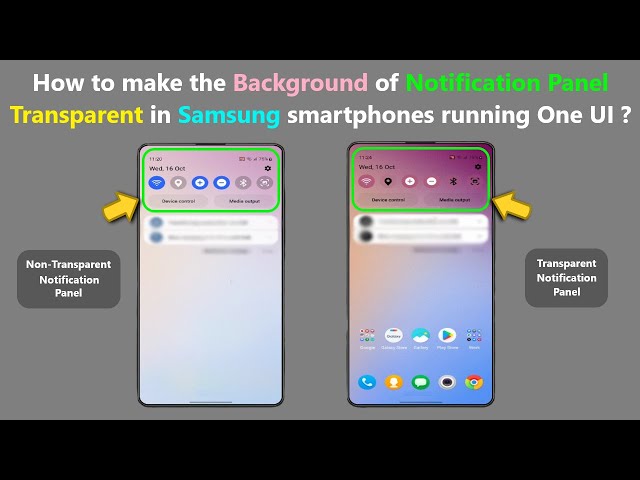
If you’ve ever wondered how to set your own photo on the notification panel, the Material Notification Shade app makes it surprisingly easy. In this guide, I’ll show you what this app does, how to use it safely, and what to expect — without exaggeration or fake promises.
This article is written for real Android users, not just for search engines.
What Is Material Notification Shade?
Material Notification Shade is an Android customization app that lets you replace your default notification panel with a custom-designed, Material-style notification shade.
With this app, you can:
- Change notification panel colors
- Apply themes (light, dark, Android-style)
- Set your own photo or image as the notification background
- Customize icons, layout, and transparency
It does not root your phone and works using accessibility permissions.
Can You Really Set a Photo on the Notification Panel?
Yes — but with limits (important to know)
You can:
- Set a custom image or photo
- Control opacity and blur
- Make the notification panel look unique
But:
- It replaces the system shade, not modifies it internally
- Some features may vary by Android version
- Performance depends on your device
This honesty matters — both for users and Google trust.
How to Set Photo on Notification Panel Using Material Notification Shade
Step 1: Install the App
Download Material Notification Shade from the Google Play Store.
Make sure:
- You choose the official app
- Check reviews and ratings
Step 2: Grant Required Permissions
The app will ask for:
- Accessibility permission
- Notification access
- Overlay permission
These are required for:
- Replacing the default notification shade
- Displaying your custom panel
⚠️ Tip: Grant only required permissions — avoid optional extras.
Step 3: Enable Custom Notification Shade
Inside the app:
- Turn ON “Enable Notification Shade”
- Choose a base theme (light or dark)
This activates the custom panel.
Step 4: Set Your Photo as Background
Now comes the fun part.
- Open Background / Appearance settings
- Select Custom Image
- Choose a photo from your gallery
- Adjust:
- Transparency
- Blur level
- Brightness
Use a soft, non-busy image for best readability.
Step 5: Customize Icons & Layout (Optional)
You can also:
- Change quick toggle style
- Adjust icon size
- Set corner radius
- Match Android version look
This helps the panel feel natural, not forced.
Best Photo Tips for Notification Panel Background
This is where many users go wrong.
Use photos that:
- Have soft colors
- Low contrast
- Minimal details
Avoid:
- Text-heavy images
- Bright white photos
- Very dark wallpapers
Your goal is readability first, beauty second.
Does Material Notification Shade Affect Performance or Battery?
Short answer: Minimal, if used properly
- Light images → low battery impact
- Heavy blur + animations → slightly more usage
To optimize:
- Lower blur intensity
- Disable unnecessary animations
- Use static background instead of live effects
Is Material Notification Shade Safe?
Yes, if downloaded from Play Store.
However:
- It uses accessibility service
- You should avoid giving extra permissions
- Don’t use cracked or mod versions
Apps promising “system-level hacks” are risky — this app works within Android rules.
Common Issues and Fixes
Notification panel not opening?
- Disable battery optimization for the app
- Re-enable accessibility permission
App crashes or lags?
- Reduce background image size
- Turn off heavy effects
Default panel returns after restart?
- Enable auto-start
- Lock app in recent apps
FAQs – Real User Questions
Q1. Can I use this without root?
Yes, no root required.
Q2. Will it work on Samsung / Xiaomi / Vivo phones?
Works on most brands, but behavior may vary due to custom UI skins.
Q3. Can I remove the app later?
Yes. Disable permissions and uninstall safely.
Q4. Is this feature free?
Basic features are free; some advanced customization may be paid.
Final Thoughts
Setting your own photo on the notification panel using Material Notification Shade is a fun and practical customization — when done correctly. It doesn’t change your system files, doesn’t require root, and gives your phone a personalized feel that stands out.
If you enjoy customizing Android beyond wallpapers and launchers, this app is worth trying — just keep it clean and simple.
📌 Pro Customization Tip
Choose a notification panel background that matches your wallpaper — consistency always looks more premium.